Technical Root Cause Analysis

As a low-voltage integrator, I see this scenario constantly on job sites. This is a classic case of system over-subscription and bandwidth starvation. You have scaled a prosumer NAS (likely a mid-tier Synology Plus-series) to its absolute breaking point without optimizing the network architecture or stream profiles for a heavy 32-camera load.

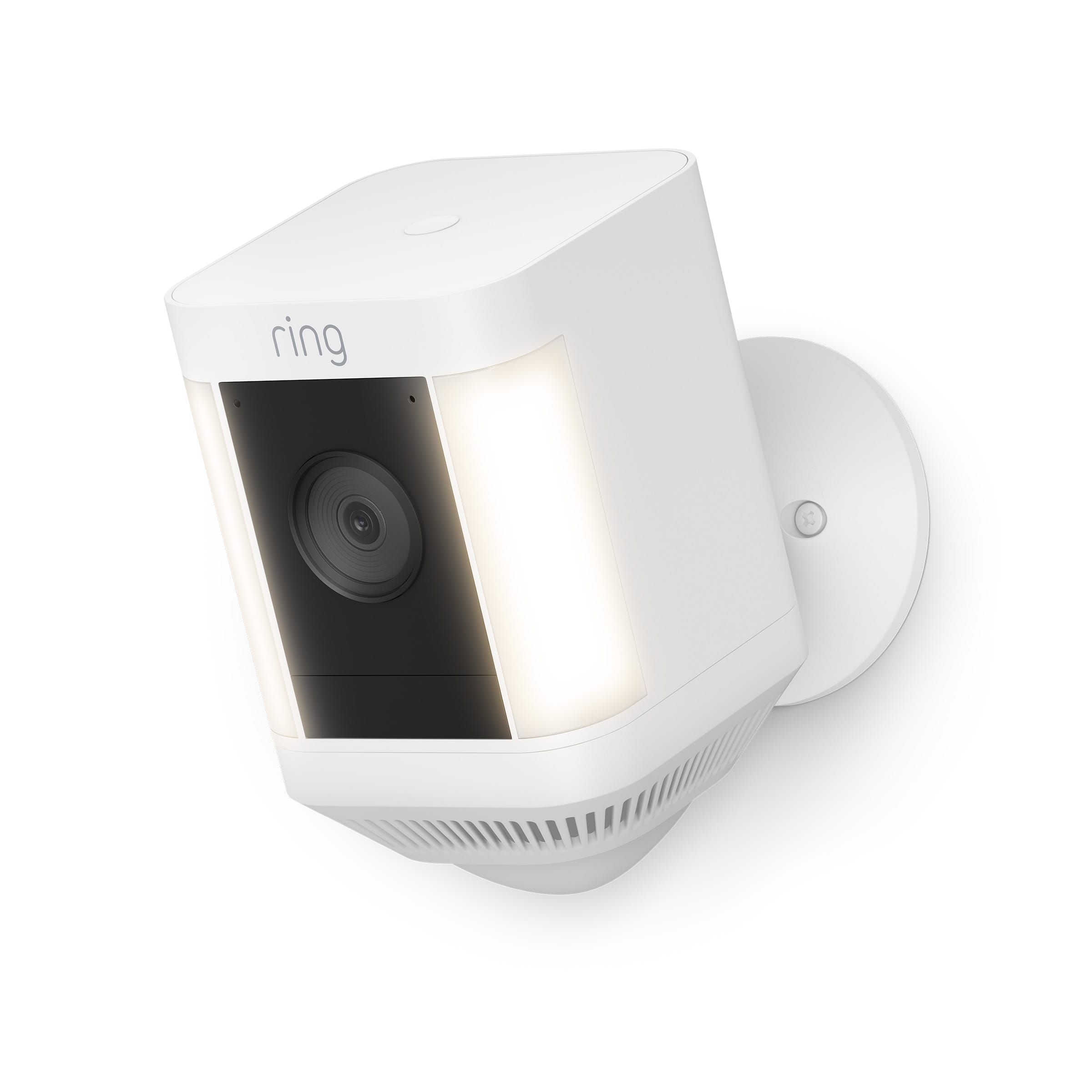
Clients often compare their raw IP camera feeds to consumer-grade Wi-Fi cameras, but this is a false equivalency. Consumer systems rely on aggressive cloud-proxying and highly compressed, low-bitrate “preview” streams. Your Synology setup, on the other hand, is likely trying to push raw, high-bitrate H.265 data through a narrow 30Mbps upload pipe—a common bottleneck with standard North American cable ISPs like Xfinity or Spectrum.
Uplink Saturation and Hardware Limits
The primary failure point here is Uplink Saturation combined with Client-Side Decoding Exhaustion. A 30Mbps upload speed is entirely insufficient for 32 high-resolution cameras unless the system is strictly configured to use low-resolution sub-streams for remote viewing. Furthermore, hitting a hard “32 camera limit” indicates your NAS hardware has reached its ceiling. At 32 streams, the CPU and disk I/O throughput are maxed out. This hardware exhaustion causes the lag and “green flashes” you are seeing, which are typically dropped I-frames or decoding errors.
Finally, using a standard web browser (like Chrome or Edge) to view 32 cameras is computationally disastrous. Browsers struggle with hardware acceleration for multiple heavy video streams, leading to massive memory leaks and CPU spikes on the viewing PC.
Diagnosing the Symptoms and Causes
Before we rip and replace equipment, we need to map the exact symptoms to their network causes. If your mobile app performance is sluggish compared to consumer-grade cloud solutions, or if you are seeing visual tearing on PC playback, you are experiencing GOP (Group of Pictures) or Keyframe mismatches due to packet loss.
The Health Check Workflow
Run through this diagnostic checklist to confirm the bottlenecks on your network and hardware:
- Resource Monitor: Check the Synology DSM Resource Monitor. If your CPU or RAM is consistently sitting above 80%, the NAS is underpowered for your current bitrate load.
- Bandwidth Test: Run a speed test on the network while simultaneously trying to view the cameras remotely via the DS-CAM app. If your upload speed drops to near zero, the camera feeds are choking the pipe.
- Stream Profile Audit: Navigate to Camera Settings > Stream Profile. Ensure “Stream 1” is set to High Quality (strictly for local recording) and “Stream 2” is set to Low Quality (for mobile and multi-view grids).
- I-Frame Interval Check: Ensure the camera’s I-Frame interval matches your Frame Rate. For example, if you are shooting at 15fps, your I-Frame should be 15 or 30. Mismatched intervals are the leading cause of the dreaded “green flash” during decoding.
Recommended Fixes & Workflow
We need to tackle this in two phases: stabilizing your current 32-camera footprint, and then planning the infrastructure upgrade required to safely support 64 cameras.
Phase 1: Immediate Optimization (Zero Cost)
First, Enable Dual-Streaming. Force the DS-CAM app and your PC’s multi-view grid to use Stream 2 (typically 640×480 or 720p). Reserve Stream 1 exclusively for single-camera, full-screen viewing. Next, stop using the web browser immediately. Download and install the dedicated Synology Surveillance Station Client for Windows or Mac. The desktop client utilizes proper GPU hardware acceleration, which will instantly resolve browser-induced lag and green flashing.
Finally, adjust your bitrate control. Change your cameras from VBR (Variable Bit Rate) to CBR (Constant Bit Rate). VBR allows bandwidth spikes during high-motion events (like a truck driving by or heavy rain), which will instantly crash a remote connection over a limited 30Mbps upload pipe.
Phase 2: Infrastructure Upgrade (The 64-Camera Path)
If you want to scale to 64 cameras, you must migrate away from a general-purpose NAS. You need a dedicated Video Management System (VMS). Here are the standard paths we use in the North American commercial space:
- Option A (Enterprise VMS): Migrate to Milestone XProtect running on a dedicated Windows Server. This is the industry gold standard for performance and can handle hundreds of cameras, provided you have the rack space for a heavy 15 to 30 lb 2U server.
- Option B (High Performance Prosumer): Blue Iris. This requires a dedicated, high-end PC (i7/i9 processor with Intel QuickSync enabled). It is incredibly fast but requires more hands-on IT management.
- Option C (Hardware NVR): Deploy a dedicated 64-Channel NVR. While brands like Hikvision and Dahua are common, many US integrators now spec NDAA-compliant hardware like Hanwha Wisenet or Uniview. These units use dedicated ASICs specifically designed for video handling, vastly outperforming a standard NAS.
Cautions & Professional Advice
As an integrator, I cannot stress this enough: Disable Port Forwarding immediately. Opening ports on your router for 32 IP cameras is a massive cybersecurity vulnerability. Instead, use a secure VPN tunnel (like WireGuard or Tailscale) or rely on a VMS with a secure cloud-relay. If you want that fast, “Ring-like” remote connection without the security risks of port forwarding, look into Nx Witness or Hanwha systems—their Cloud Connect technology is vastly superior to Synology’s QuickConnect.
Keep in mind the hard limits of physics. No matter what software or hardware you buy, you cannot stream 64 high-definition cameras simultaneously over a 30Mbps upload connection. You must separate your “Recording Resolution” (high-def, stored locally) from your “Viewing Resolution” (sub-streams pushed over the internet).
Lastly, do not ignore storage throughput. For a 64-camera system pushing constant data over hundreds of feet of Cat6 cable, standard NAS hard drives will burn out quickly. Ensure your new NVR or server utilizes Surveillance-grade drives (like WD Purple or Seagate Skyhawk) configured in RAID 6 or RAID 10 to handle the relentless 24/7 write-load.